Viewers
Potree Point Cloud Viewer: How to Use Potree and Publish 3D Scans Online
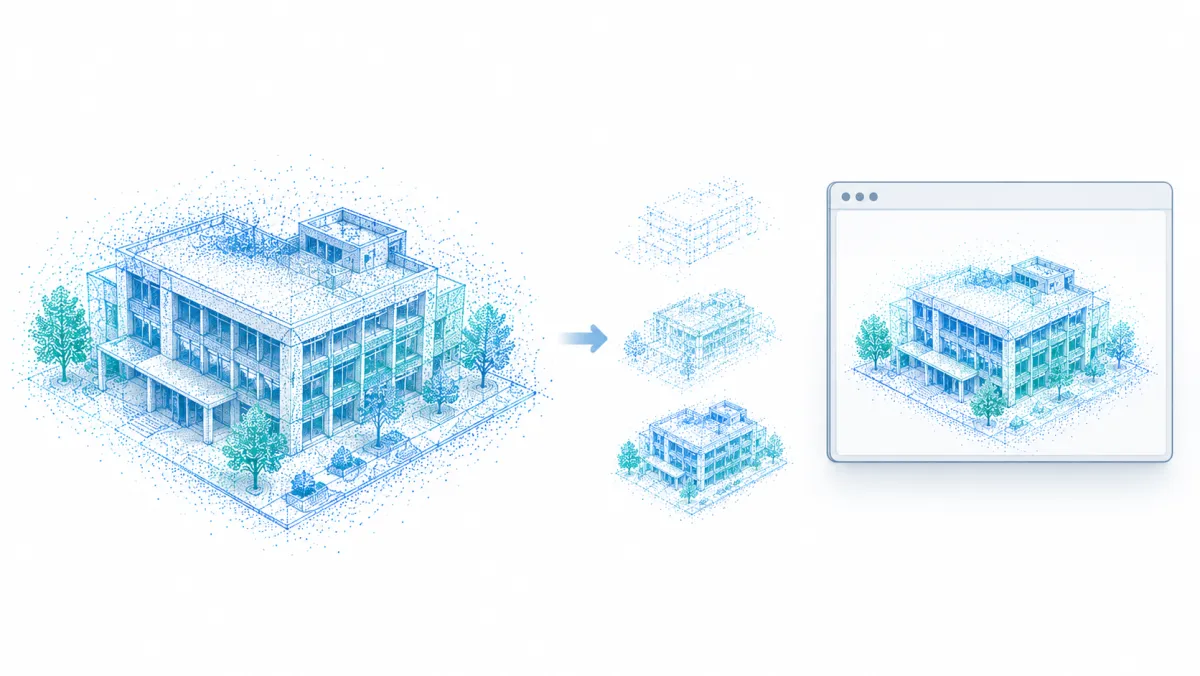
The potree point cloud viewer is a free, open-source WebGL application for exploring large 3D scans in a web browser. It uses an octree and level-of-detail rendering to load relevant portions of a dataset as people navigate. Survey and BIM teams can inspect buildings, measure distances, create sections, and share a visual reference without asking recipients to install desktop modeling software.
To publish point cloud online, first prepare LAS or LAZ data, convert it with a compatible PotreeConverter build, connect the output to a Potree viewer page, and host the complete website resources. Converting a scan does not register it or create BIM elements. The file structure, server settings, and access permissions all affect whether the published view works.
What is the Potree point cloud viewer and how does it work?
The Potree point cloud viewer is an open-source browser application that displays prepared 3D point data using WebGL. Its octree divides space into hierarchical regions, allowing the viewer to request detail according to camera position and a rendering budget. It is for interactive inspection, not scan registration or editable BIM authoring. For other viewers beyond Potree, see the best free point cloud viewer comparison.
How does octree level-of-detail loading work?
Octree level-of-detail loading selects coarse or detailed spatial nodes according to what the camera needs to show. A distant facade can use fewer points; moving closer causes the viewer to request more detail. This limits simultaneous rendering, although network throughput and device graphics capacity still constrain performance.
What can people inspect in a Potree viewer?
People can navigate the cloud, change supported color attributes, measure distances, inspect elevation profiles, and use clipping or annotations in appropriately configured Potree examples. Available colors depend on the input fields, such as RGB, elevation, intensity, or classification. Display tools do not independently certify the accuracy of survey measurements.
What input files and versions does Potree need?
Potree needs compatible converted point data plus the browser viewer's JavaScript, libraries, and resources. LAS and LAZ are common inputs to PotreeConverter; other survey exports may need preparation first. Match the converter output to the viewer example because modern metadata-based datasets and older cloud.js projects use different loading paths.
| Input or file | Purpose | Important check |
|---|---|---|
| LAS / LAZ | Typical converter input | Valid coordinates and required attributes |
| E57 or other survey exports | May require intermediate conversion | Scanner positions and attribute preservation |
| metadata.json | Describes converted point cloud | Viewer must reference exact path |
| hierarchy.bin | Stores spatial hierarchy | File exists and can be requested |
| octree.bin | Stores converted point data | Server supports partial byte requests |
| cloud.js (legacy) | Older Potree data entry point | Use matching viewer and format |
Potree file compatibility table distinguishing LAS and LAZ inputs, converter metadata and binary files, and legacy cloud.js projects.
Preserve the registered source and confirm required color, intensity, classification, coordinates, and units before conversion.
How do you convert LAS or LAZ scans into Potree format?
To convert LAS or LAZ into Potree format, run PotreeConverter with the source file and an output directory, then inspect the generated hierarchy. PotreeConverter 2.x organizes the data for progressive access and normally creates three core files. It does not correct an unregistered survey or supply a finished website by itself.
How do you run PotreeConverter 2.x?
Run the installed 2.x converter with a supported LAS or LAZ file and the -o output option. Its default level-of-detail sampling method is Poisson disk; -m random selects a different hierarchy sampling strategy. Check the program's own help output because options differ between older converter releases.
PotreeConverter input.las -o pointclouds/site_scan -m poissonHow do you verify the conversion output?
Verify conversion by locating metadata.json, hierarchy.bin, and octree.bin in the output folder and confirming the process ended without errors. Open the metadata and check the point attributes and bounds. Retain the source LAS or LAZ separately, because the converted structure is for web viewing rather than archival replacement.
How do you configure Potree to display a converted scan?
Configure Potree by starting with a working example from the same viewer distribution, placing the converted dataset at a stable relative path, and updating the point cloud loading call. The viewer must already be initialized with its required assets. A standalone load snippet cannot replace the HTML page and supporting scripts.
How do you connect metadata.json to the viewer?
Connect the dataset by passing the relative metadata.json path into Potree.loadPointCloud, then add the returned point cloud to the initialized scene. The example below follows the promise-based loading pattern in the PotreeConverter 2.x documentation. It assumes that viewer and the supporting Potree scripts already exist.
Potree.loadPointCloud('./pointclouds/site_scan/metadata.json')
  .then(({ pointcloud }) => {
    viewer.scene.addPointCloud(pointcloud);
    viewer.fitToScreen();
  });
How do you adjust viewing performance?
Adjust performance by lowering the visible point budget, using appropriate point size, and testing on representative devices. For an initialized viewer, viewer.setPointBudget(1000000) is a starting example, not a guaranteed optimum. A larger budget may slow rendering without improving the inspection of the feature currently on screen.
How do you publish a point cloud online with Potree?
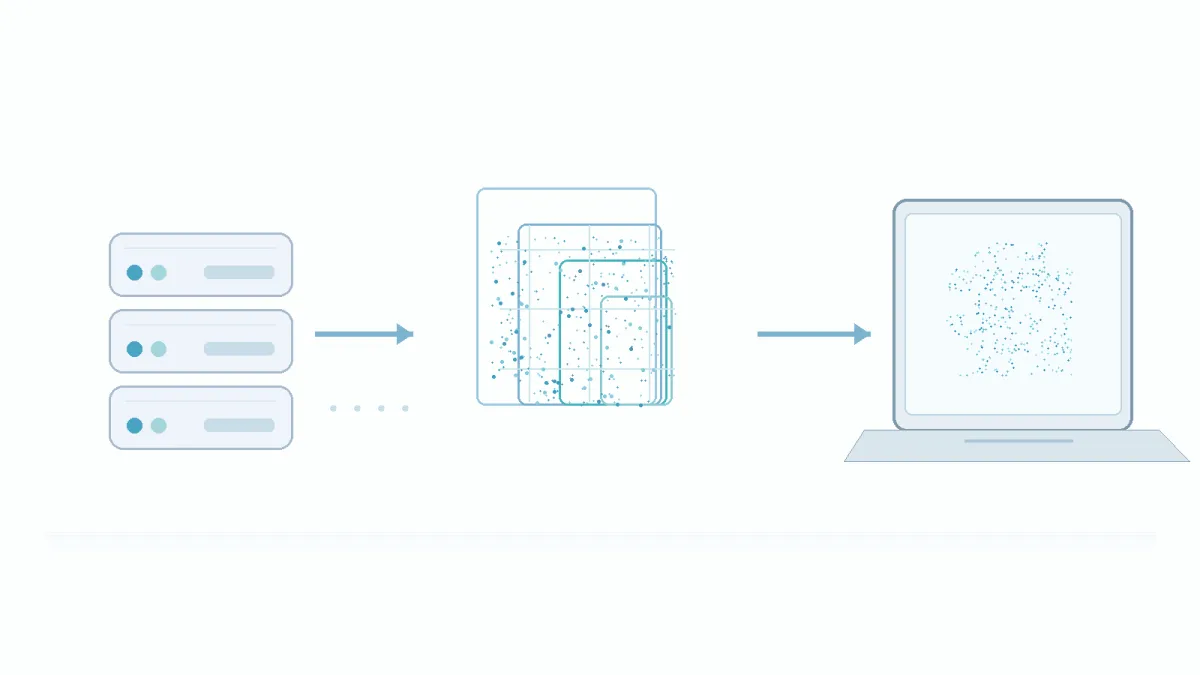
Publish a point cloud online by hosting the converted files, working viewer page, and all required JavaScript and resource directories on a web server. Static hosting is sufficient for a basic deployment. Confirm that paths resolve through HTTP or HTTPS and that binary requests, including byte ranges, are supported.
Which files should you upload to the server?
Upload the viewer's compiled assets, required libraries, resources, HTML page, and the complete converted scan directory. Keep the same relative locations used in a successful local server test. The core point cloud directory may contain only three PotreeConverter 2.x files, but the complete viewer still needs additional assets.
What hosting and access settings are necessary?
Use HTTPS, readable static paths, and byte-range support for large binary point cloud files. If the viewer and data are on different origins, configure CORS for the authorized site. Restrict access to confidential building scans with real authentication; hiding a URL or embedding a page does not secure the underlying data. Moving whole survey datasets between teams is covered in the guide on large point cloud file transfer.
How do you create a live Potree demo on your website?
Create a live Potree demo by deploying a tested viewer page with an authorized converted scan, then linking to that page from your website. Once the route works, embed it in an iframe if your platform permits. The markup itself does not create a functioning viewer without deployed files.
- Convert an authorized scan and verify coverage.
- Learn how to use Potree controls on a local HTTP server.
- Deploy the tested folder and check network requests.
- Embed only if the platform permits iframes.
<iframe src="/pointcloud-demo/index.html"
  title="Interactive point cloud viewer"
  width="100%" height="500" loading="lazy"></iframe>
What causes common Potree loading and display errors?
Potree errors commonly come from a wrong metadata path, missing viewer resources, unsupported server responses, or excessive rendering demand. Diagnose whether the page, metadata, or binary nodes failed to load before reprocessing the scan. Use browser network and console messages to distinguish a path problem from a dataset or graphics problem.
| Symptom | Likely cause | First diagnostic action |
|---|---|---|
| Blank viewer | Missing scripts or wrong entry path | Inspect console and metadata URL |
| Cloud never appears | Missing hierarchy or octree files | Check network requests and HTTP responses |
| Works locally, fails remotely | CORS or byte-range behavior | Test headers and partial requests |
| Viewer freezes | Point budget or device limits | Reduce budget and retest |
| Unexpected colors | Absent RGB or other attributes | Inspect converted metadata and source fields |
Potree troubleshooting table with blank viewer, missing point data, server request errors, slow rendering, and incorrect colors.
What security and performance limitations should teams expect?
Potree makes large surveys easier to view, but it does not prevent unauthorized downloads when converted data is publicly accessible. Progressive rendering also depends on storage speed, network latency, and graphics hardware. Keep confidential site information behind appropriate access controls and test viewing on the devices stakeholders actually use.
Frequently asked questions about the Potree viewer
Potree is primarily a browser viewer; PotreeConverter prepares datasets for that viewer. A basic deployment does not need a separate application database, but it does need compatible static hosting. The answer to whether a file opens directly depends on its format, conversion stage, and the particular viewer build in use.
Can Potree display raw LAS or LAZ files directly?
Typical PotreeConverter publishing workflows first convert LAS or LAZ into a browser-ready spatial hierarchy. Some Potree builds support additional loaders, including compatible indexed point cloud formats, but raw-file support should not be assumed from a general product description. Test the input format against the exact viewer build being deployed.
Does Potree require a database or a desktop installation?
No. A basic Potree deployment serves a viewer page and converted point cloud files from static web hosting without a database or desktop application for recipients. The converter is used before publication. Browser support, hosting permissions, and available device resources still determine whether the experience works reliably for users.
Keep reading